DEEPaaS API
The DEEPaaS API enables a user friendly interaction with the underlying Deep Learning modules and can be used both for training models and doing inference with services. It provides some common methods to query all the modules in the Marketplace.
For a detailed up-to-date documentation please refer to the official DEEPaaS documentation.
Integrate your model with the API
The best approach to integrate your code with DEEPaaS is to create an empty template using the AI Modules Template. This will take care of creating a Python package of your model with all the appropriate structure for your model (entrypoints, files, etc).
Once the template is created, install the package in editable mode and move your existing code (if any) it.
$ pip install -e .
To define the API methods that will interface with your existing code, we have to
modify the api.py file.
The API methods
methods you can define are:
Enable prediction: implement
get_predict_args()andpredict().Enable training: implement
get_train_args()andtrain().Enable model weights preloading: implement
warm().
You don’t need to define all the methods, just the ones you need.
Every other method will return a NotImplementError when queried from the API.
The get_metadata() should be already defined for you.
If you don’t feel like reading the DEEPaaS docs (which you should), we recommend taking a look at the AI4EOSC demo app. There, you will be able to see examples on:
how to define you predict function, with multiple types of inputs and outputs.
how to choose to return different formats, be it a JSON or a file (eg. image, zip). If you choose to return a JSON, please define a
schemato validate the output predictions.how to define a training function that logs metrics into Tensorboard monitoring.
ㅤ 🧠 Decoupling code and API
Try to keep you module’s code as decoupled as possible from DEEPaaS code, so that
any future changes in the API are easy to integrate.
This means that the predict() in api.py should mostly be an interface to
your true predict function. In pseudocode:
#api.py
import utils  # eg. this is where your true predict function is

def predict(**kwargs):
    args = preprocess(kwargs)  # transform deepaas input to your standard input
    out = utils.predict(args)  # make prediction
    resp = postprocess(out)    # transform your standard output to deepaas output
    return resp
Additional considerations
The values you use in your get_predict_args() will be used to generate the Gradio UI in Try-me deployments.
In particular, this affects to how files (webargs.fields.Field) will be rendered in the UI:
if
imageis found in description, it will be rendered as a Gradio imageif
audiois found in description, it will be rendered as a Gradio audioif
videois found in description, it will be rendered as a Gradio videoif
#noparseis found in description, it will be rendered as a Gradio generic fileif more than one is found in description (eg.
imageandvideo), it will be rendered as a Gradio generic fileif no keyword is found, it will be rendered as a Gradio generic file
def get_predict_args():
    arg_dict = {
        "demo_image": fields.Field(
            required=True,
            type="file",
            location="form",
            description="test upload",
            # "image" not in description, thus rendered as a generic file in the Gradio UI
        ),
        "demo_image_1": fields.Field(
            required=True,
            type="file",
            location="form",
            description="test image upload",
            # "image" is indeed in description, thus rendered as an image in the Gradio UI
        ),
    }
    return arg_dict
In addition, if you have not defined a schema to validate your JSON response, the output in the UI will be the plain JSON response, instead of a feature-rich UI.
The same point about rendering files also applies here.
schema = {
    "demo_image_2": fields.Str(
        description="some file"
    ), # "image" not in description, thus rendered as a generic file in the Gradio UI
    "demo_image_3": fields.Str(
        description="some image file"
    ), # "image" is indeed in description, thus rendered as an image in the Gradio UI
    "accept": fields.Str(),
}
Running the API
To start the API run:
$ deepaas-run --listen-ip 0.0.0.0
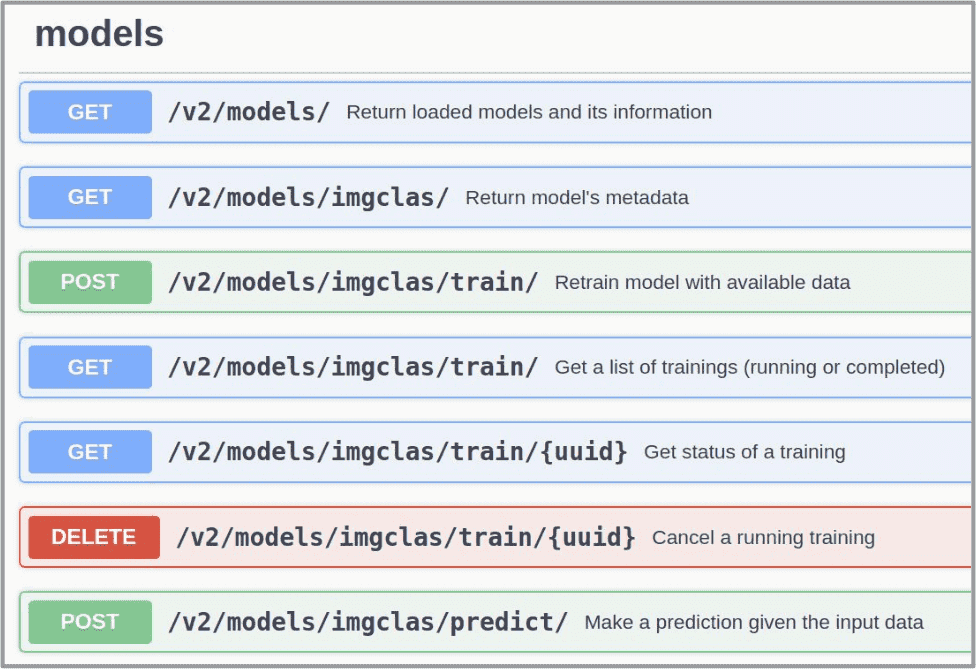
and go to http://0.0.0.0:5000/ui. You will see the Swagger UI with all the methods:
If running the API from inside a module’s Docker container, you can use the command:
$ deep-start --deepaas
ㅤ 🛠️ Troubleshooting: I only see a module called deepaas-test
It can happen that when you launch DEEPaaS, you cannot find your module in the UI and see something like the following instead:
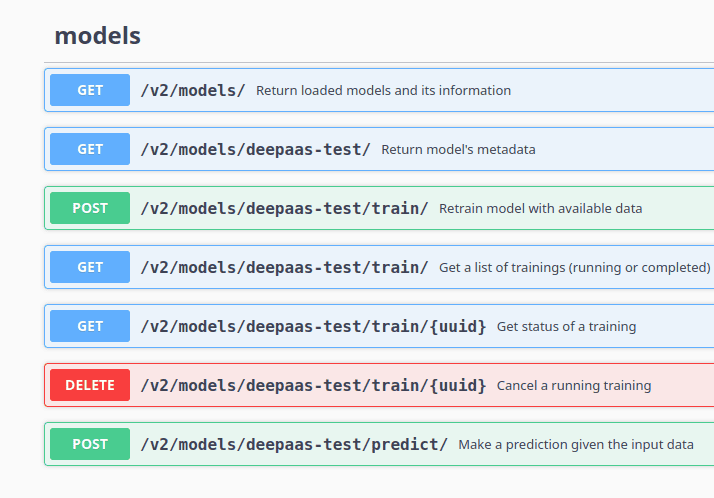
This mean that DEEPaaS had problems to load your module and loaded instead the dummy module (deepaas-test).
You can usually debug by running your module’s API script and looking at the error it raised:
$ python ai4os_demo_app/api.py
File "ai4os_demo_app/api.py", line 48
    var =
        ^
SyntaxError: invalid syntax
Once fixed, launch DEEPaaS again and your module should appear.